My Current Claude Code Visual Setup
As many of you are well aware of, software engineering is being uprooted as we speak. I’ve been spending a lot of time in Claude Code lately, and I have been tweaking my dev environment along the way in order to keep the cognitive debt as bay. The small things compound, so I figured I’d share what I’m currently working with.
Ghostty, Full Screen, Splits Everywhere
I run Ghostty full screen with splits — multiple Claude Code instances side by side, plus panes to watch files, run servers, or check logs. Splits come and go constantly.
One shortcut I use constantly: Cmd+Shift+Enter to zoom into a single pane, then pop back out.
Color-Coded Terminal Backgrounds
Each project I work in gets its own background color. My obsidian vault repo gets a subtle green tint, the blog goes deep blue. It’s cosmetic, but useful — when I’m context-switching between projects, the color registers before I’ve consciously parsed the directory path. The background shifts the moment you cd into a project directory.
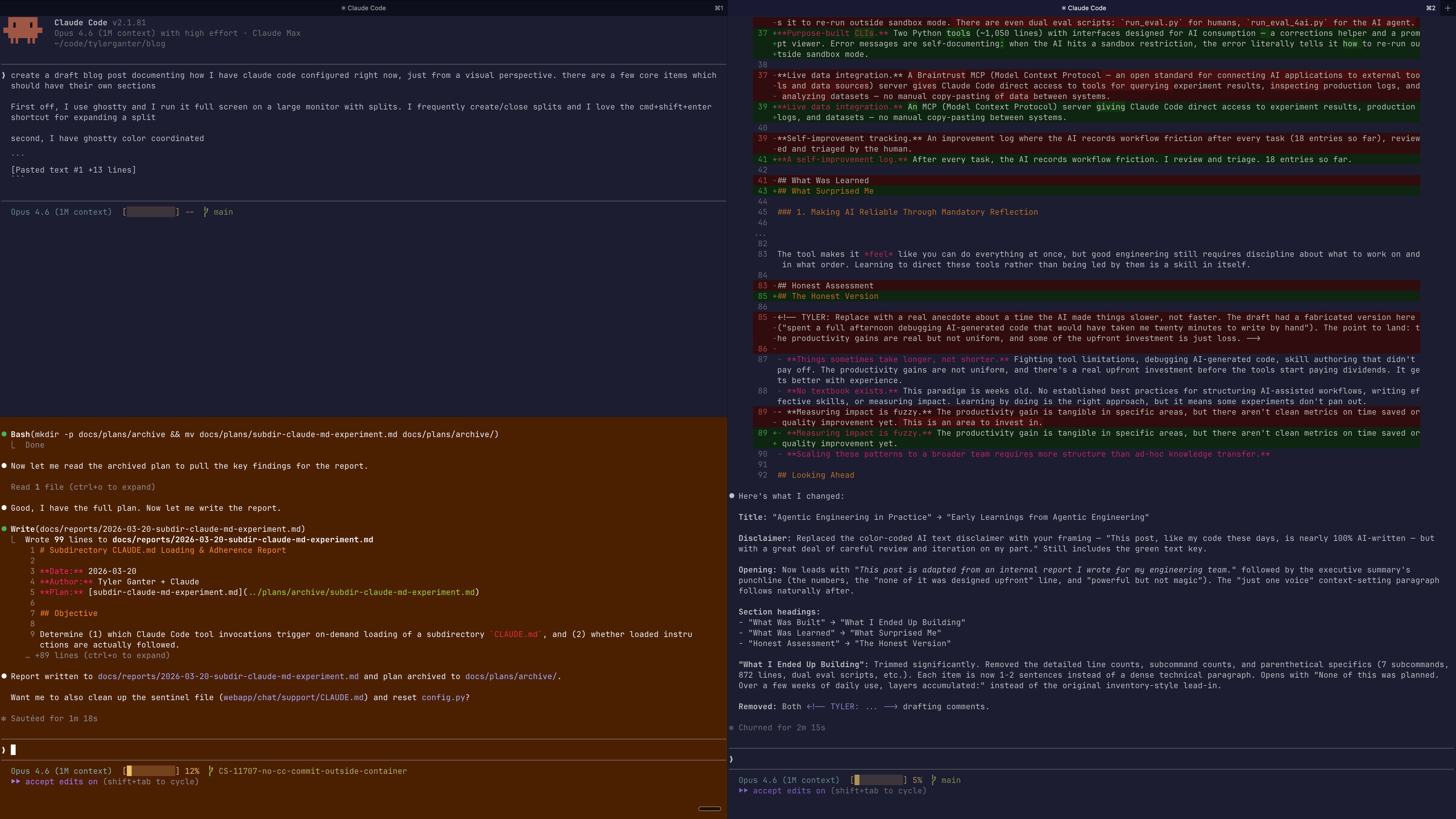
Configure it in ~/.bash_profile:
# Tint terminal background based on directory
_dir_color() {
case "$PWD" in
  */tganter-vault*)    printf '\e]11;#243a2a\a' ;;  # subtle green tint
  */chat-toolkit*)     printf '\e]11;#382440\a' ;;  # magenta
  */tilde-dot-claude*) printf '\e]11;#473830\a' ;;  # anthropic brown
  */tylerganter/blog*) printf '\e]11;#1a1a3a\a' ;;  # personal blog
  *)                   printf '\e]11;#282c33\a' ;;  # ghostty default
esac
}
PROMPT_COMMAND="_dir_color${PROMPT_COMMAND:+;$PROMPT_COMMAND}"
Matching VS Code to the Terminal
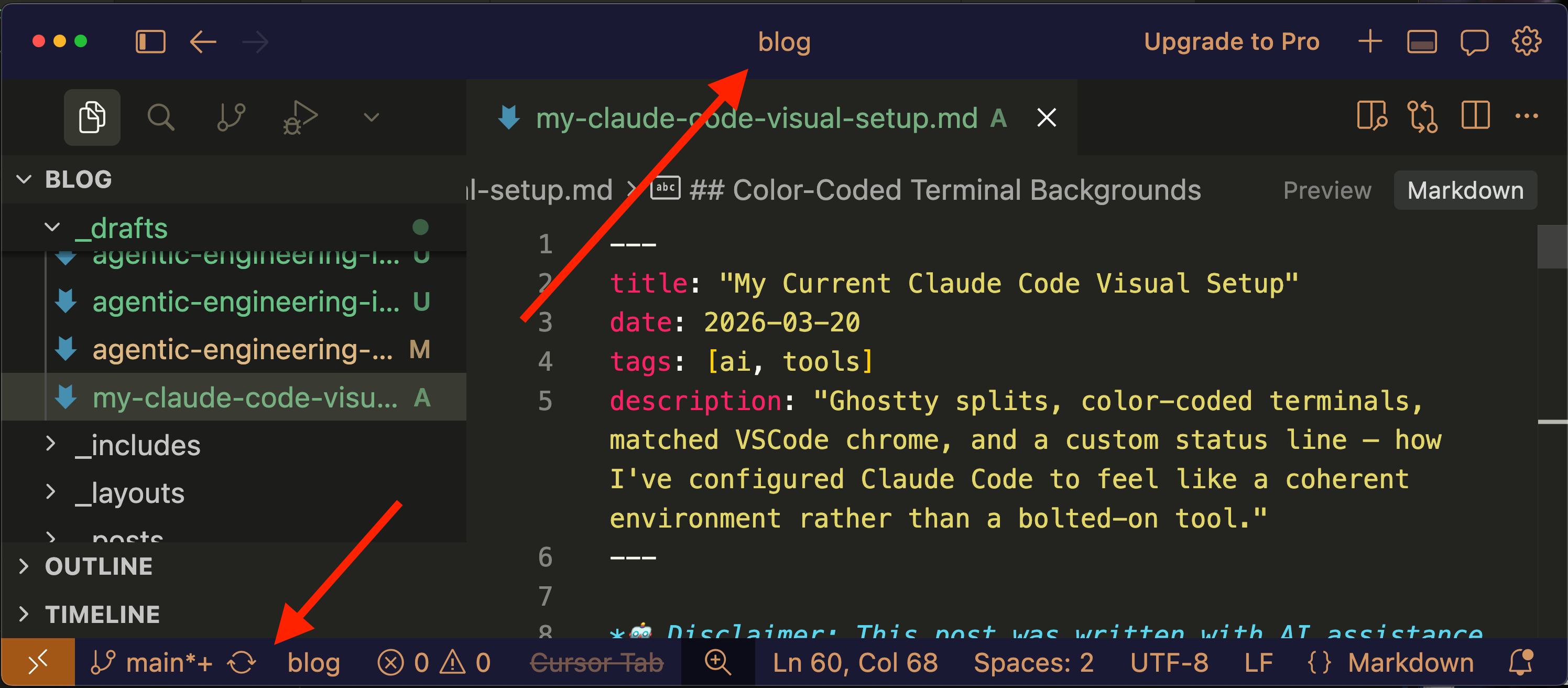
Every project repo gets a .vscode/settings.json that sets the title bar and status bar colors to match Ghostty’s background for that project. Commit it so teammates get the same environment automatically.
Here’s the one for this blog — deep navy/indigo with warm amber text.
Custom Status Line
My status line shows three things: the model name, a visual context window usage bar, and the current git branch.
Context usage is the crucial part. Context rot is a real thing. You need to experiment at varying levels of context usage and gain intuition, and while /context is useful, it’s not the same as an ever-present status bar.
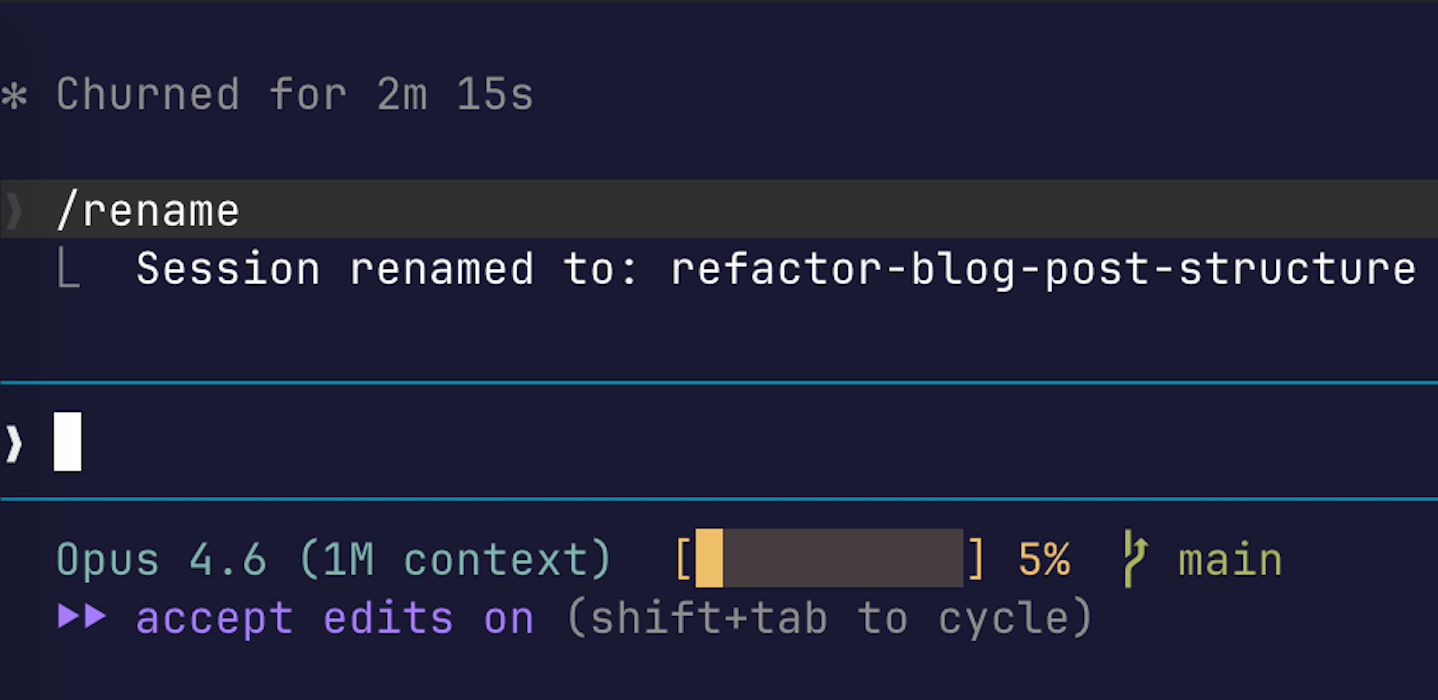
Claude Code lets you wire up a shell script to drive the status line at the bottom of the terminal. One line in ~/.claude/settings.json:
{
  "statusLineCommand": "~/.claude/statusline-command.sh"
}
My script is here.
I’m still experimenting. I’m not always in the terminal — I still really like the cursor-style editor layout with the AI agent on the right side, which you can get with the Claude Code VS Code extension. But the terminal is at the bleeding edge, and it’s the most well-documented and widely adopted interface. The setup is still evolving — hope something here was useful!